Icon composer icon contains alpha channel upload error

When creating an icon using icon composer, I cant upload a build to testflight/App Store connect.

Running on device from Xcode works fine, but as soon as I archive and upload to App Store Connect, I get an error saying the icon contains an alpha channel

For those continuing to experience this with Xcode 26 RC, we're investigating. A previous issue that produced this message is resolved with Xcode 26 RC (FB19782649), however, we've since identified another issue (r. 159919021) that produces the same message.

There are some mentions in this thread of modifying the blur as a workaround, and I'd like to acknowledge @nachojackson and @joeallenpro from the community for providing and confirming those workarounds worked for them.

— Ed Ford,  DTS Engineer

I am getting this issue also and I am on RC Xcode and RC macOS Tahoe. I took the .icon file out the 'App Icon' section of the Target settings and it allowed be to archive properly. Wondering if the Connect server is running into a bug with the .icon files. Hoping it gets fixed soon and I can hopfully push a 'day-one' update alongside the release of iOS26

I've been getting this issue too, and after weeks of checking the forums and being told it would be resolved by release, it's very frustrating to spend hours trying different things now the RC is out and it's still failing.

As mentioned by others, removing the blur from an SVG near the edge fixed it for me.

I have just tried with Xcode 26 RC and still get the same error "ITMS-90717: Invalid large app icon". I have tested with only SVG files, with only PNG, where one was w/o alpha, and with combination SVG and PNG. Nothing worked. I sent feedback with attached AppIcon.icon file.

Turn off Blur for the group fixed this issue and was able to submit app for review. It is not the best but at least is a workaround.

Removing the blur effect worked! Thanks!

Confirm same issue with Xcode 26 (17A321). Turning off blur for all layers in Icon Composer fixed it.

Same issue Xcode 26 (17A321), I've added FB20258577 with icon composer file and the inspector settings per layer. By blur do people mean Liquid Glass effects? Otherwise we have normal blend mode.

The only way I was able to get a build uploaded today to fix my missing icon on the iPad target was to delete this file altogether. I have no idea why the iPhone target worked at all.

Xcode Cloud was building for 2 hours today with no feedback. I finally archived myself and saw the validation errors with the red herring of it being in an asset catalog.

So very tired but happy to have worked on betas again. I gave up on that when iOS 5 iCloud builds crashed every other launch and I had to revert three months of work. Not reverting Liquid Glass. It has issues, but it's very pretty when you give it a chance. It was inspiring to work with something beautiful amongst all the ugliness in the world these days.

I have the same issue in Xcode 26 I turned off the blur effect but it's still throwing an error when trying to send the archive to App Store Connect... :/

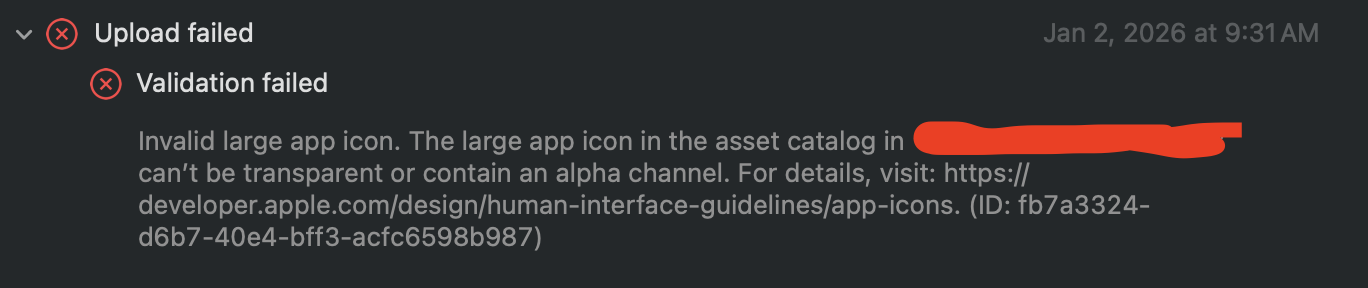
Validation failed Invalid large app icon. The large app icon in the asset catalog can’t be transparent or contain an alpha channel.

Ok the fix is to save the file instead of exporting it. Then the whole file should be moved into the project area not the assets folder.

This solves the problem and I think it's a proper way to do it even though the official developer video about icon composer didn't mentioned it and really was not clear how to properly add icon into the Xcode

This still appears to be broken in Icon Composer 1.2 RC. Sending to TestFlight fails the alpha channel check. The only way I was able to submit with an icon was to flatten the image which removes the transparent background behind the icon. Flattening and getting a background color allows the app to be submitted.

If anyone is still facing this issue. It seems like you should not use AppIcon from assets but add your Icon Composer project to Xcode and make sure your target is using its name.

https://developer.apple.com/documentation/xcode/creating-your-app-icon-using-icon-composer#Add-your-Icon-Composer-file-to-an-Xcode-project

I am also running into this error. (Jan 2026)

Xcode v26.2. Icon Composer 1.2 (76)
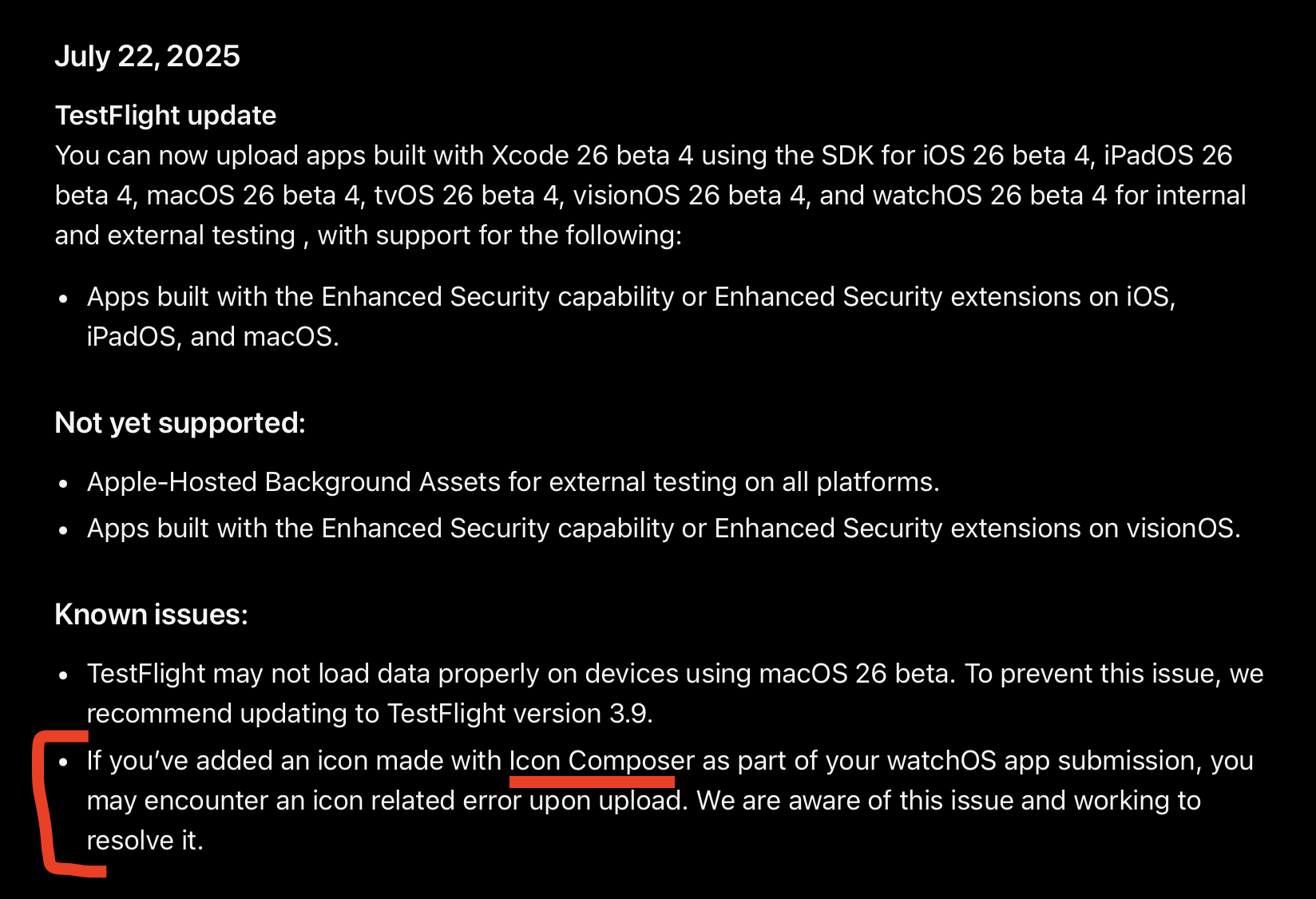
Looking at the release notes above, the issue has not been resolved.

Error message I get: "Invalid large app icon. The app icon in the asset catalog -app name- can't be transparent or contain an alpha channel."
My two cents, it might be due to the automated compiler for the apple App Store distribution SDK they use to review apps quickly before it goes to a real person. This might be due to the new Liquid Glass UX/UI update.

I was really excited to try it, but until it gets fixed, I don't think we will get app icons being Liquid Glass anytime soon.

Might be due to the fact that, I have the lowest version of iOS 17, which might not recognize it yet. I wonder if it is only for iOS 26 uploads? no idea.


Version 26.2 (17C52) on MacOS 26.2

I am also experiencing these issues, been on for over a week now trying to confirm 100% my icon/logo does not contain an alpha Chanel/transparency.

"tell me if I'm stupid" but surely if you import an image into IconComposer with no alpha Chanel, should it not export it without alpha as well?

I am on a steep learning curve learning swift code and app design so would love to get some help as my app is ready for test flight but need logo/icon sorted!! Help!! 😩

Following the documentation here also did not work for me. https://developer.apple.com/documentation/xcode/creating-your-app-icon-using-icon-composer#Add-your-Icon-Composer-file-to-an-Xcode-project

What worked for me was the following:

  1. In Icon Composer, select File -> Export...
  2. For "Appearance", select "All", then click "Export..."
  3. Select a location and click "Export" to save
  4. Navigate to the location you saved, there should be 6 .png files.
  5. Select the three you will use for AppIcon from assets for Any Appearance, Dark, and Tinted options. Open those in Preview
  6. In Preview for each image, select File -> Export...
  7. Be sure to uncheck the "Alpha" setting and save the file.
  8. Use the newly exported images for your three AppIcon settings in Assets.
Icon composer icon contains alpha channel upload error
 
 
Q